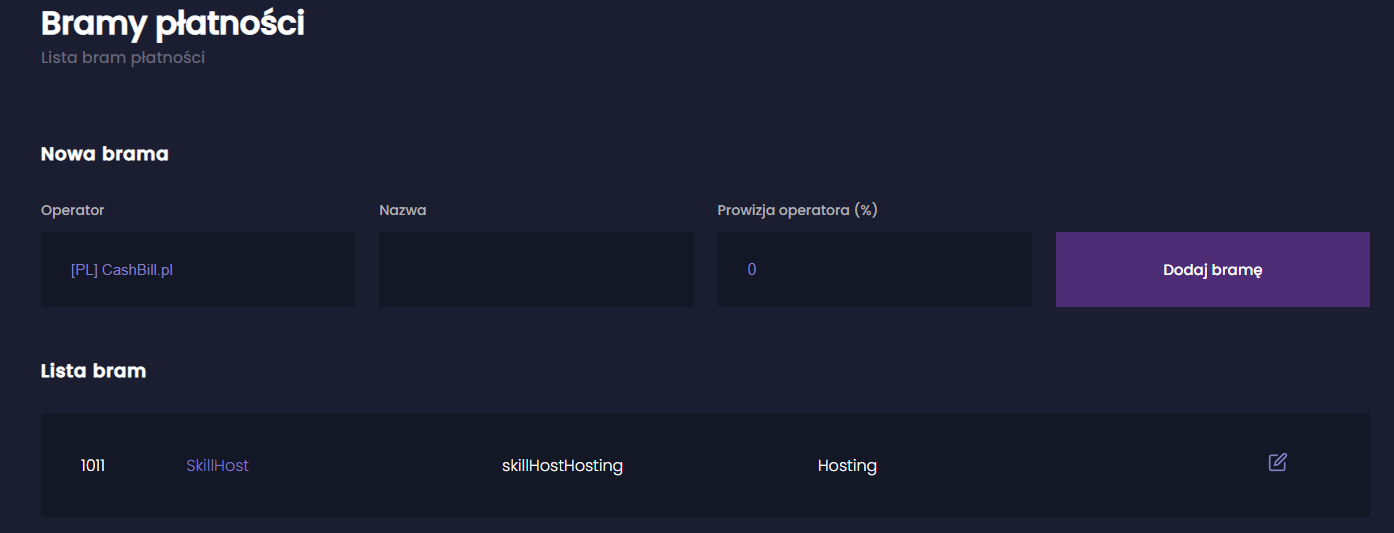
Payment API Configuration
General Information
VIshop.pl](https://vishop.pl/shops), SpaceIS, and yShop.pl are free, automated itemshops for Minecraft servers currently supporting SkillHost hosting payments. Thanks to this solution, you will be able to receive top-ups to your SkillHost.pl virtual wallet.
Every user registered in the panel can create a free ItemShop for their Minecraft server using the above platforms.
Funds obtained this way cannot be withdrawn from the hosting wallet. The wPLN earned can be used to pay for services on SkillHost, but wPLN can be transferred to other SkillHost users' accounts.
Creating an API Key
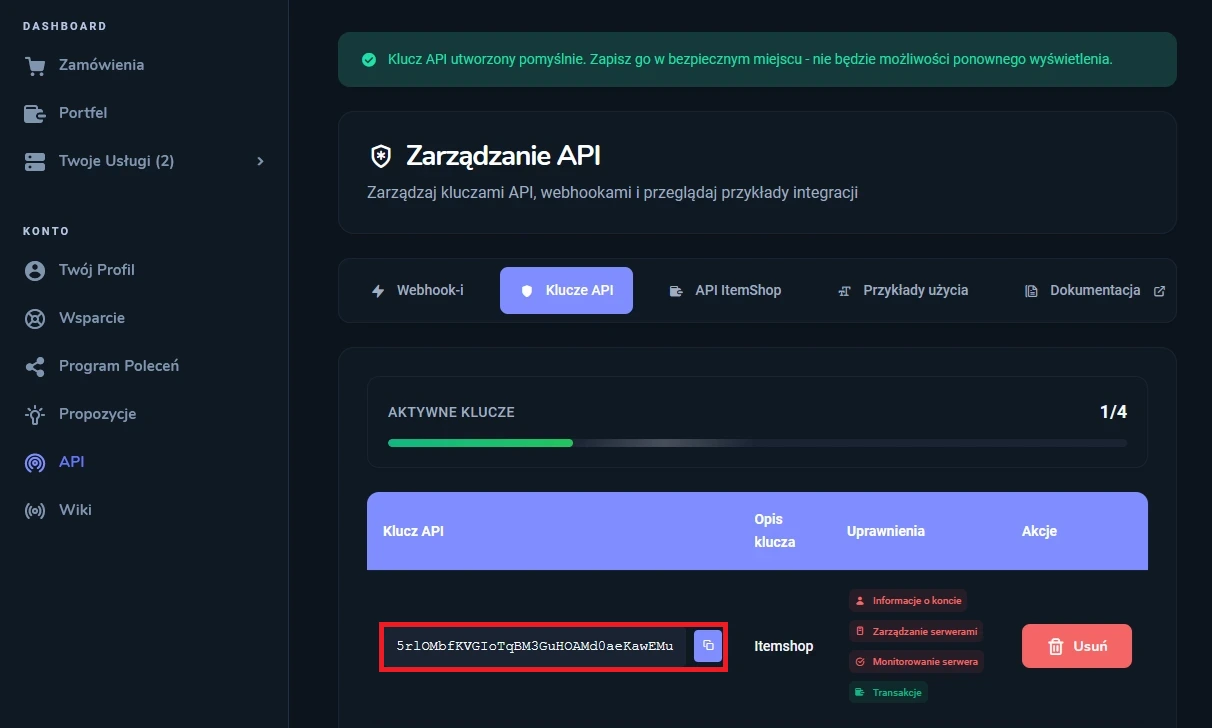
To add a payment gateway, you need to create an API Key located in the API → API Keys tab [Click to go to API Keys] and your user ID, which you can find in your profile settings [Click to check your ID].
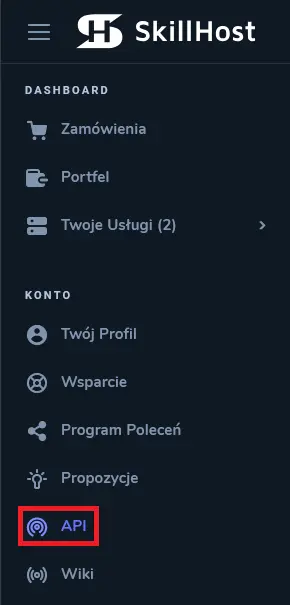
- Select the API tab in the left menu.
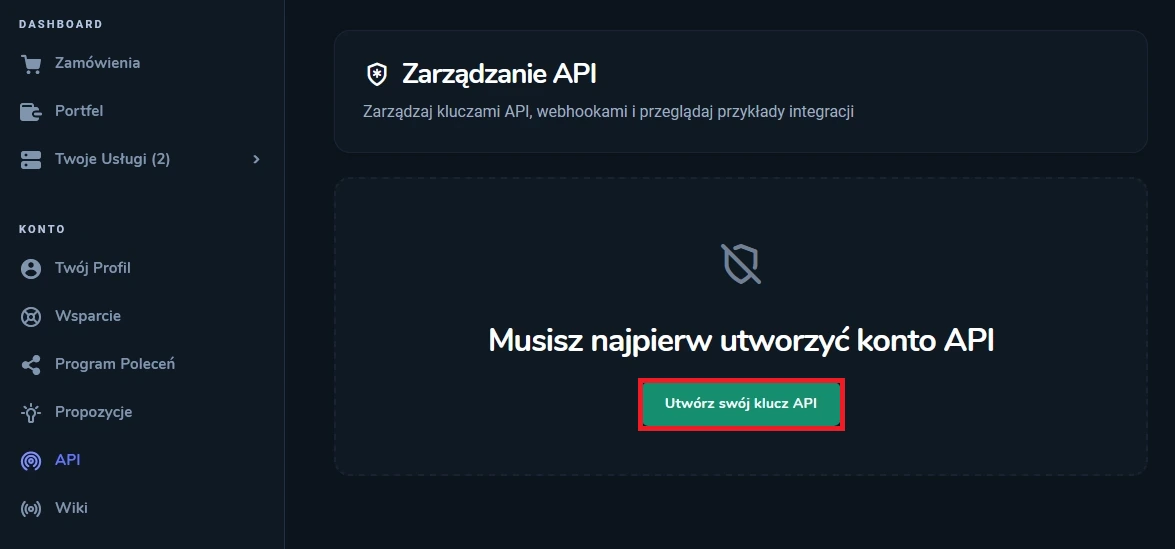
- If you see the message „You must create an API account first”, click Create your API key.
- Click the API Keys tab at the top of the panel, then:
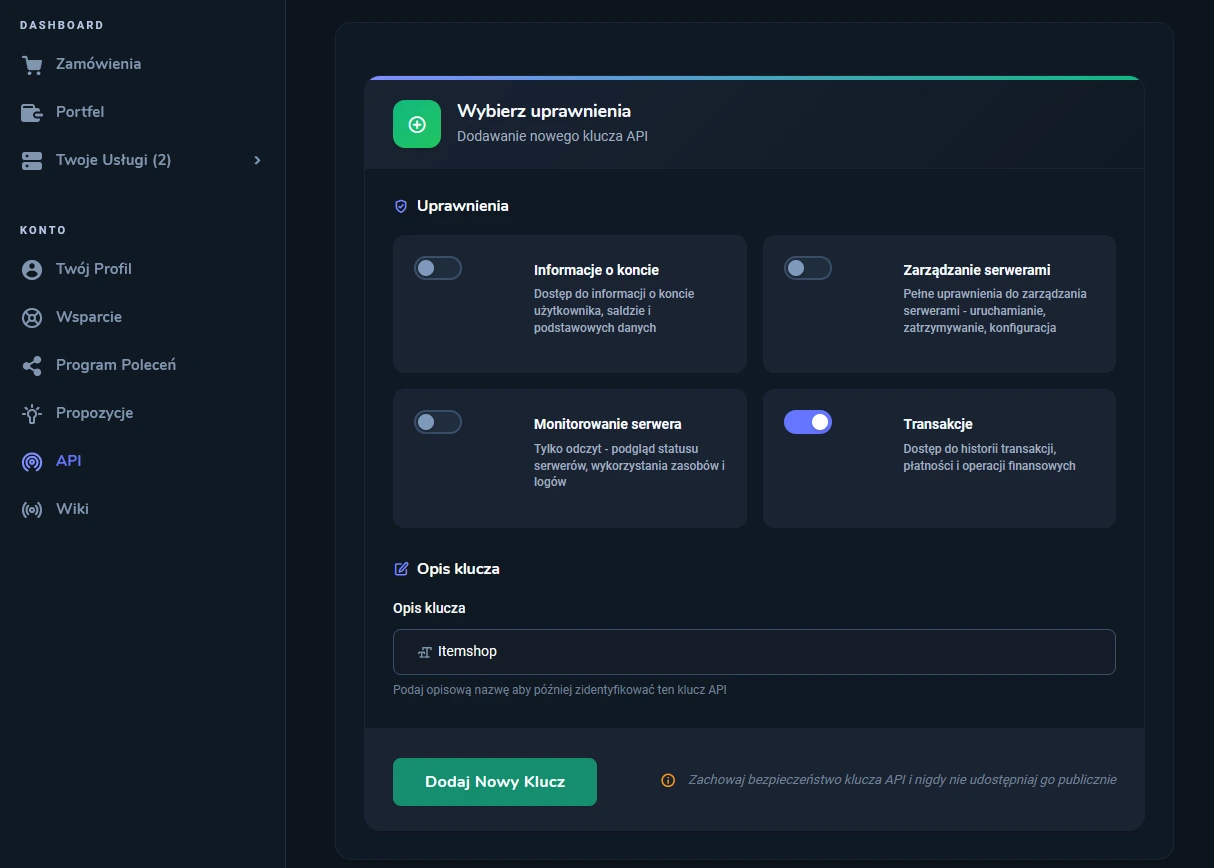
- Select the required permissions (for the itemshop, Transactions is sufficient).
- Enter a key description (e.g.,
Itemshop). - Click Add New Key.
Do not share your API key. Anyone with the key can perform operations on your account without your consent.
After adding the key, it will appear in the API Keys tab — click the copy icon to copy it.
Configuring VIshop.pl Payment Gateway
Log in to your shop at VIshop.pl and go to Payment Operators.
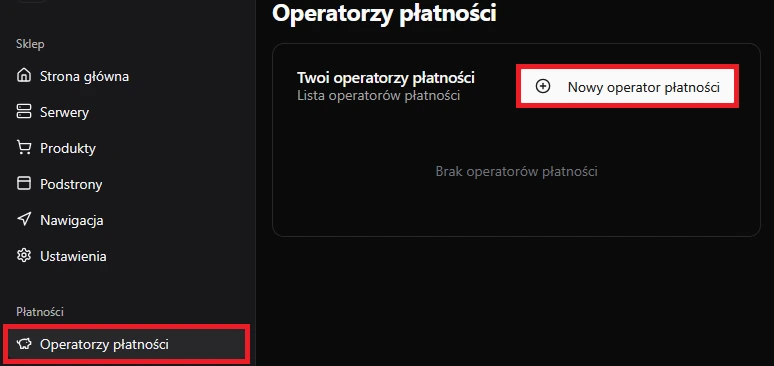
- Operator Name – enter the name of the payment operator visible in the shop (e.g., SkillHost).
- Payment Operator – select SkillHost operator from the dropdown list.
- Secret – enter your API Key from the SkillHost panel.
- User ID – enter your user ID, found in your account settings or via this link [Click to go to settings].
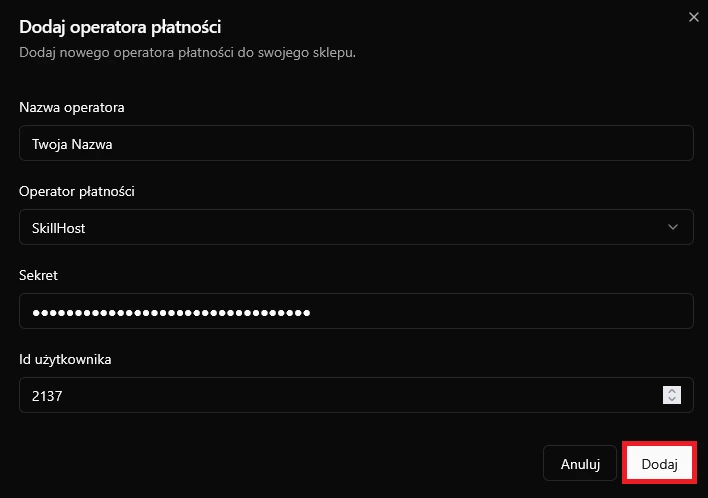
After filling in all fields, click Add. Once saved, the payment gateway will be configured. Then set up your shop (itemshop), Minecraft server, and add products.
More configuration details: wiki.vishop.pl
Configuring yShop.pl Payment Gateway
Go to the yShop.pl panel and open your shop’s dashboard. Select the Payment Gateways tab in the shop and click Add Gateway.
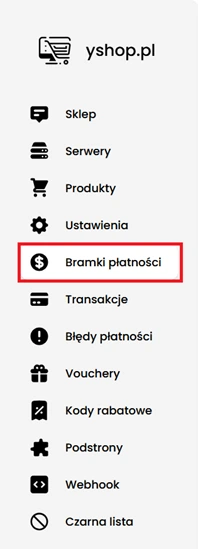
- Gateway – select SkillHost operator from the dropdown.
- Displayed Name – enter the operator name visible in the shop (e.g., SkillHost).
- User ID – enter your user ID, found in your account settings or via this link [Click to go to settings].
- API Key – enter your API Key from SkillHost panel.
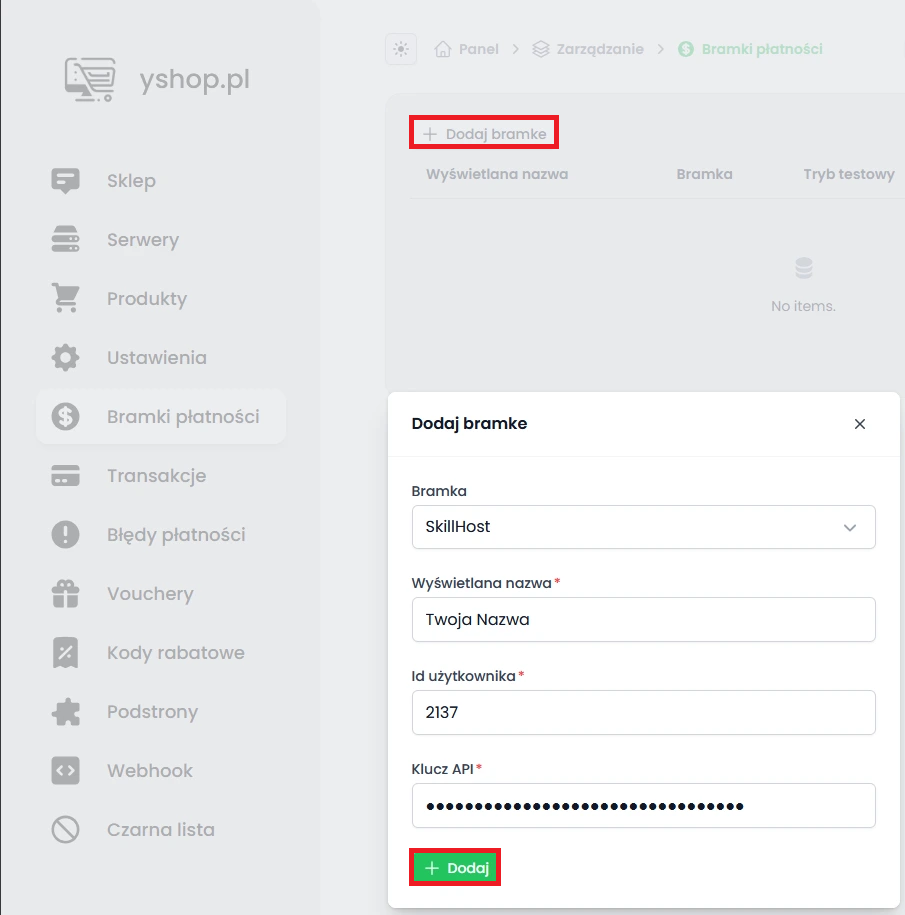
After completing all fields, click Add. Once saved, the payment gateway will be configured. Then set up your shop (itemshop), Minecraft server, and add products.
More configuration details: wiki.yshop.pl
Configuring SpaceIS.pl Payment Gateway
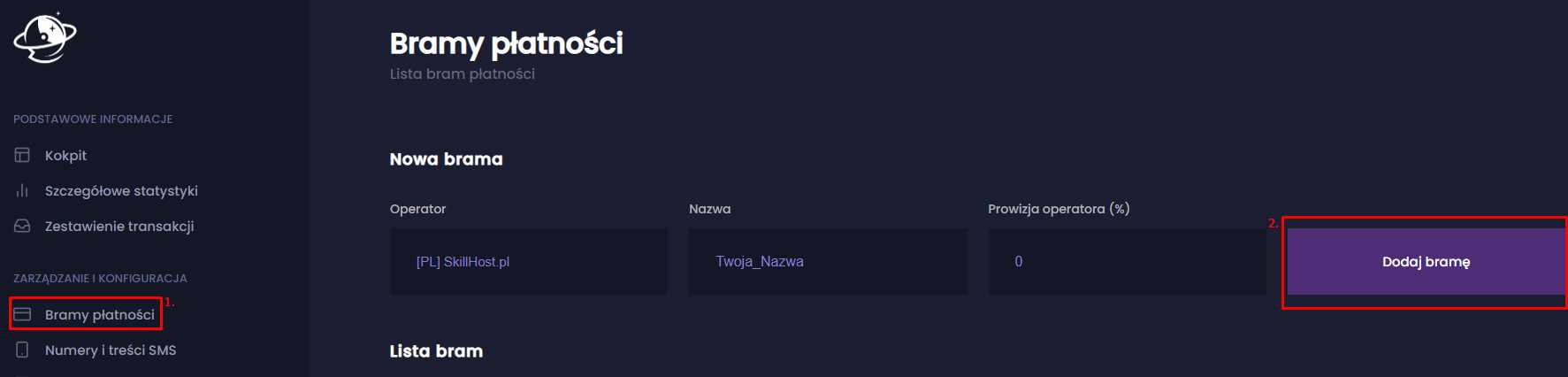
Go to the license cockpit at SpaceIS and select the Payment Gateways tab in the cockpit.
- Operator – select SkillHost operator from the dropdown list.
- Name – enter the name for the payment operator as it should appear in the shop (e.g., SkillHost).
- Click Add Gateway.
- API Key – enter your API Key from the SkillHost panel.
- User ID – enter your user ID found in account settings or via [Click to go to settings].
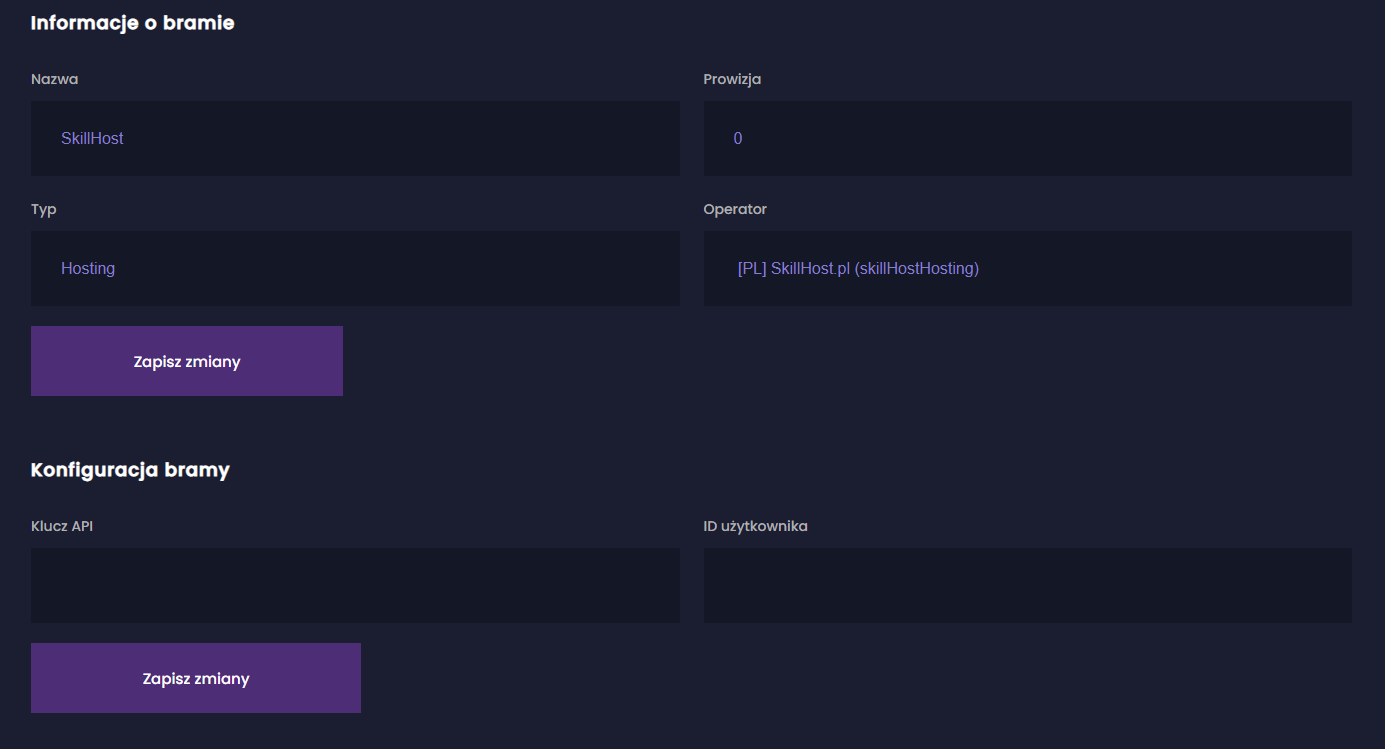
After filling in all fields, click Save Changes.
The final configuration should look like this: