Root Password Reset in Debian via chroot and LiveCD
Chroot is a technique that changes the root directory for the currently running process and its children, isolating the system environment. This allows you to safely perform recovery operations, such as resetting the root password, when you don't have access to the standard system console.
Accessing VNC Console and Selecting System Image
- Navigate to the VNC console and select a Live Debian system image in the primary drive, e.g.,
debian-live-12.7.0-amd64-xfce.

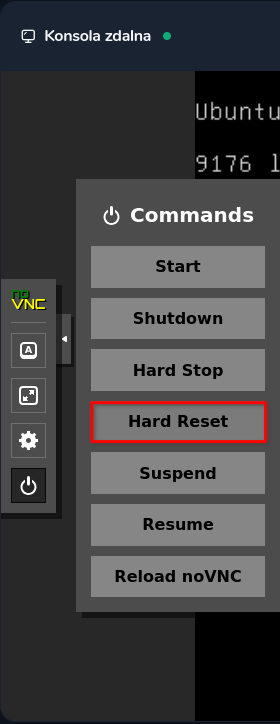
- From the left side menu of the console, select the Commands tab, then click Hard Reset and confirm the popup window.
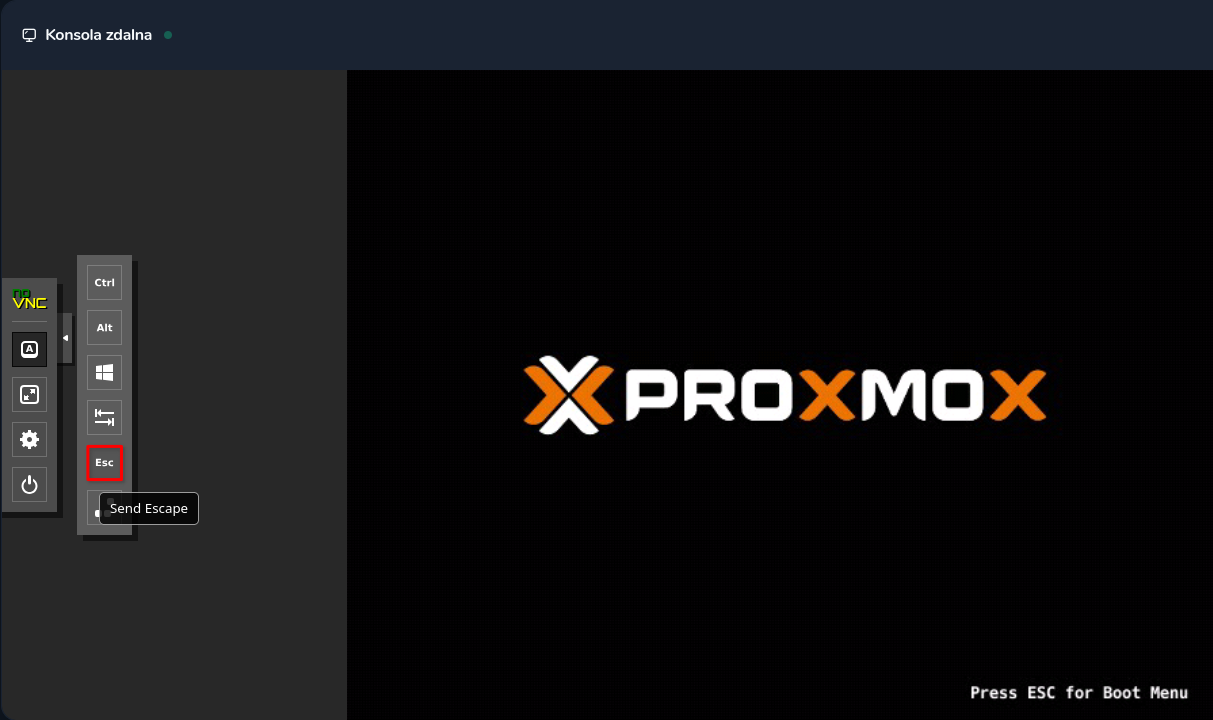
- After performing Hard Reset, quickly switch to the side panel, select Show Extra Keys and click the ESC key.
The ESC key must be pressed very quickly – precisely when the Proxmox logo appears on screen. If you miss this moment, you'll need to perform Hard Reset again.
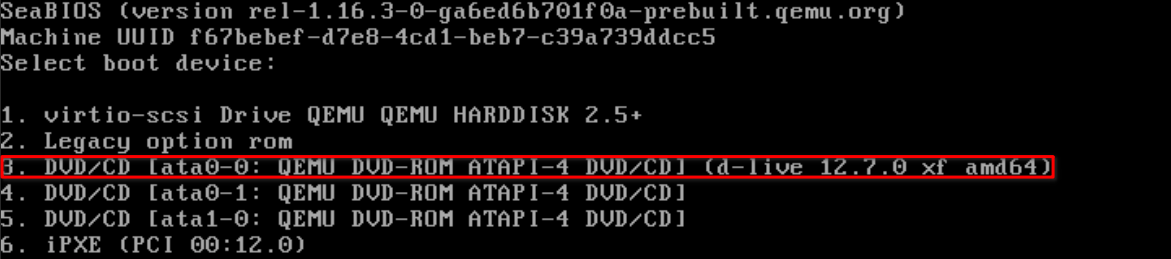
- The boot menu will appear. Select option 3 corresponding to drive 1 (containing the "d_live" notation).
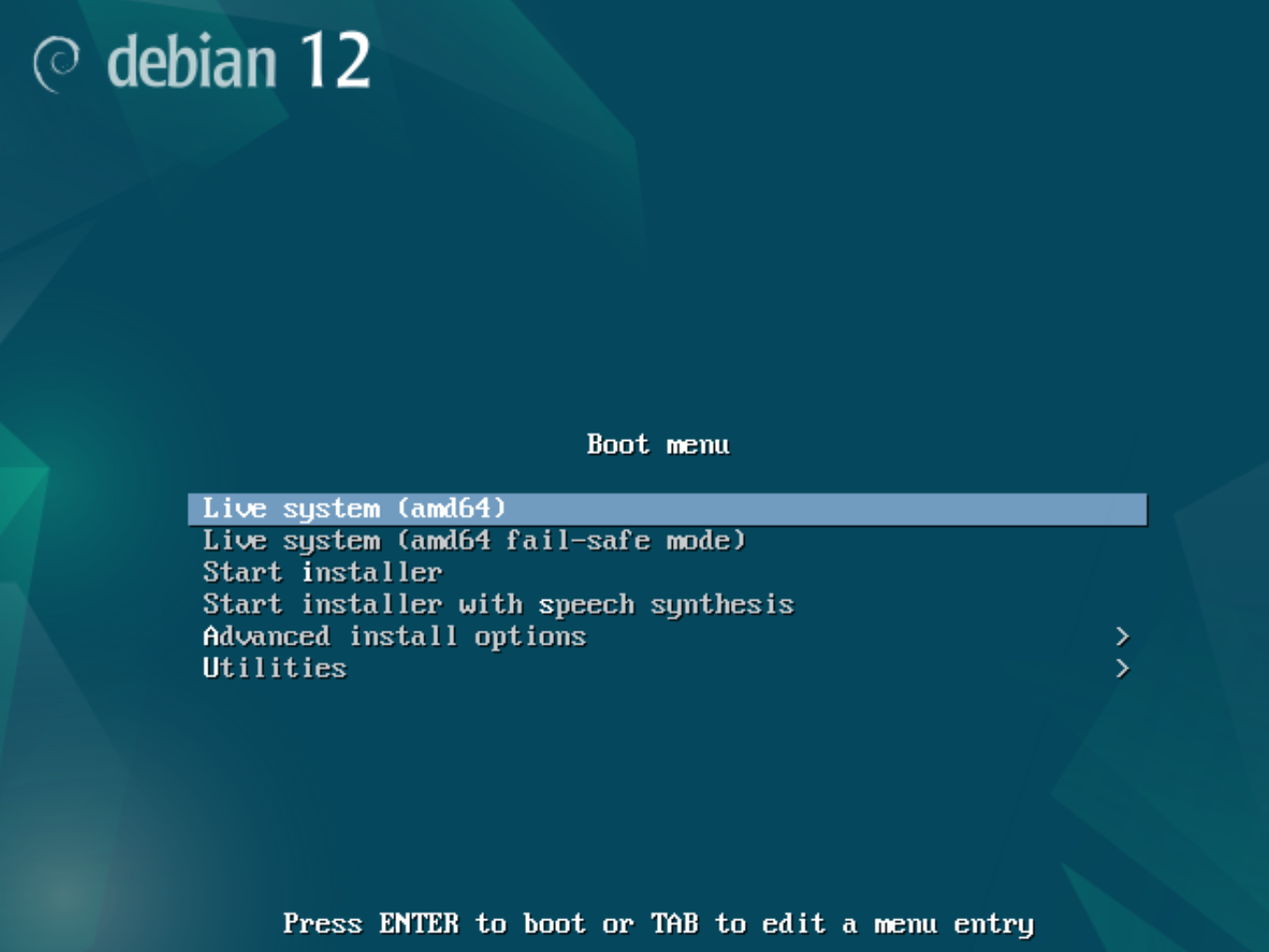
- Next, you'll see the Debian screen. Select the first option and wait for the system to boot.
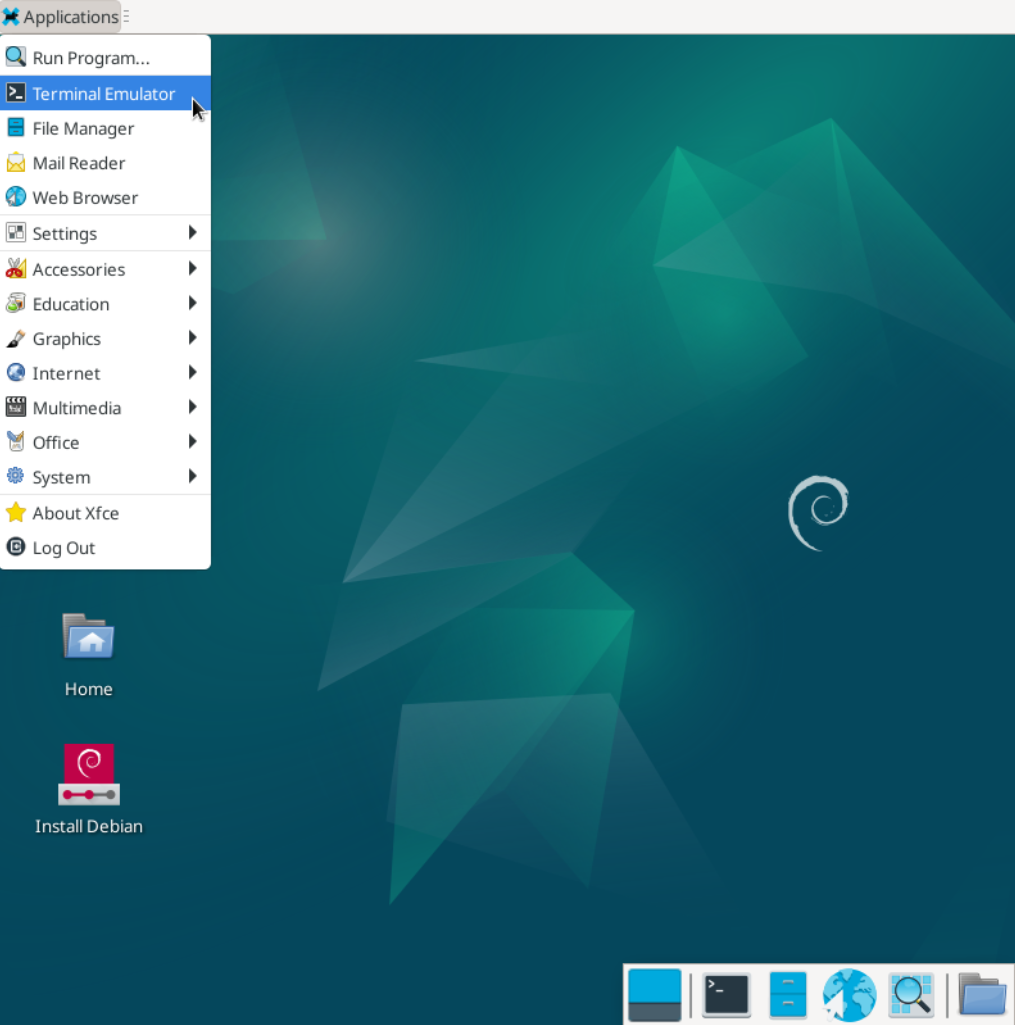
- After the system fully loads, click on Applications in the top left corner, then select Terminal Emulator.
Identifying and Mounting Partitions
In the terminal, identify the system partition where your system is installed (usually the largest partition sda1):
lsblk
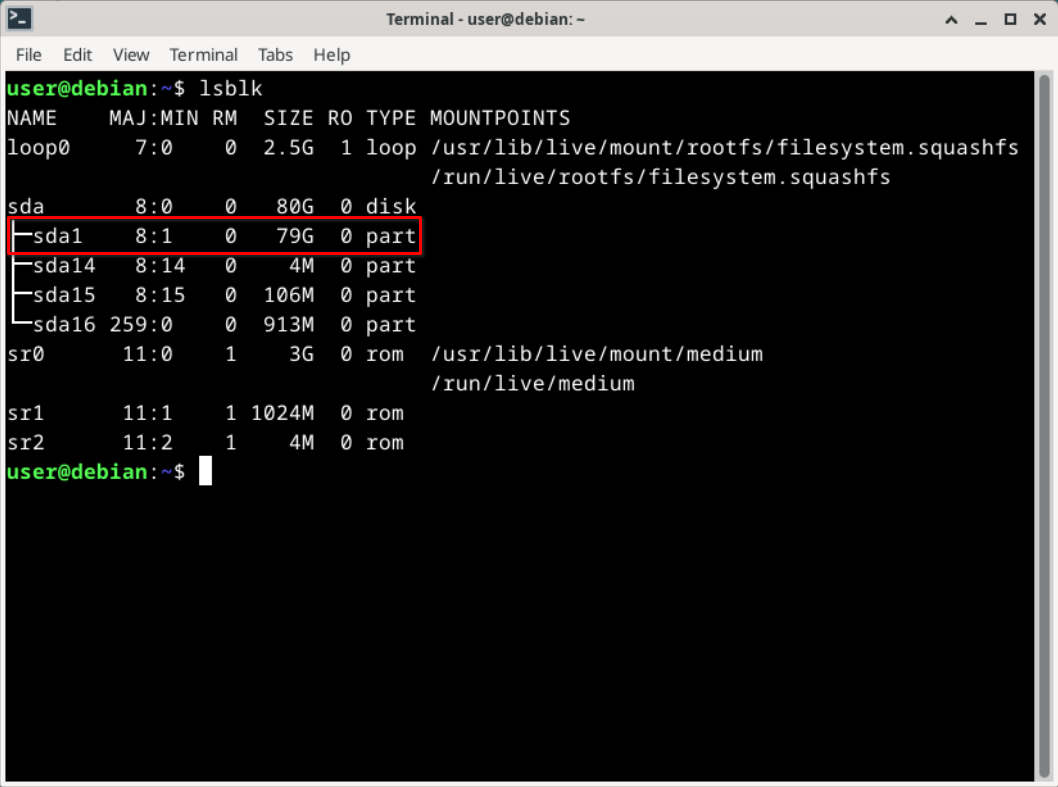
Next, mount the system's main partition, replacing /dev/sda1 with the correct identifier:
sudo mount /dev/sda1 /mnt
Entering the chroot Environment
Change the root directory to the mounted system to operate within its context:
sudo chroot /mnt
If problems occur, such as missing bash or zsh shell, specify a particular shell:
sudo chroot /mnt /bin/bash
Changing the Root Password
While in the chroot environment, change the root user password with the command:
passwd root
Enter the new password twice to confirm the change.
Exiting chroot Environment and System Restart
After changing the password, exit the chroot environment and unmount the partition:
exit
sudo umount /mnt
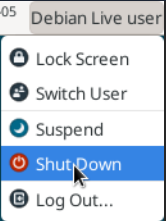
Then close the terminal, change the primary drive to No Media and shut down the server in the top right corner to restart the system with the new password.
Testing the New Password
After restart, log in to the root account using the newly set password to verify that the reset was successful.
Important Notes
- Before starting operations, create a backup of important data.
- Ensure that the mounted partition is the correct system partition.
- Exercise particular caution when resetting the root password and have appropriate administrative privileges.
- The chroot process and using a Live system requires basic knowledge of Linux systems.