Server Installation - Windows
Server Installation
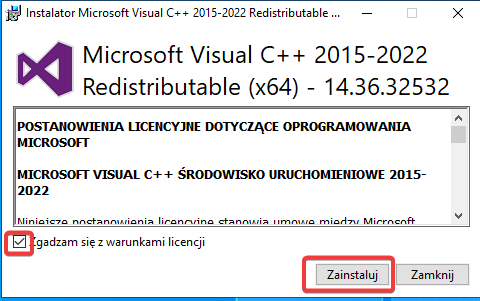
- Download and install Visual C++.
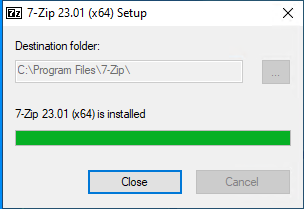
- Install 7-Zip.
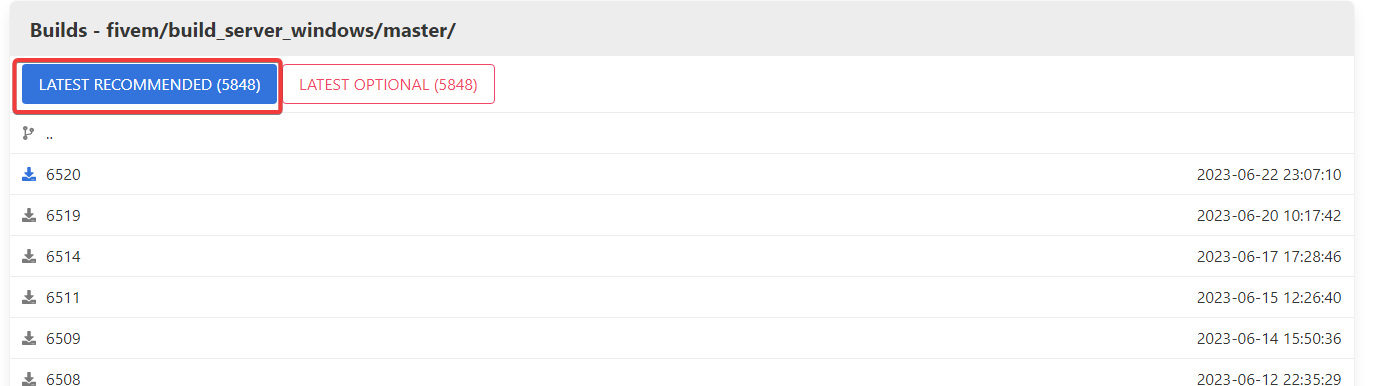
- Download the FiveM server artifacts from the official site.
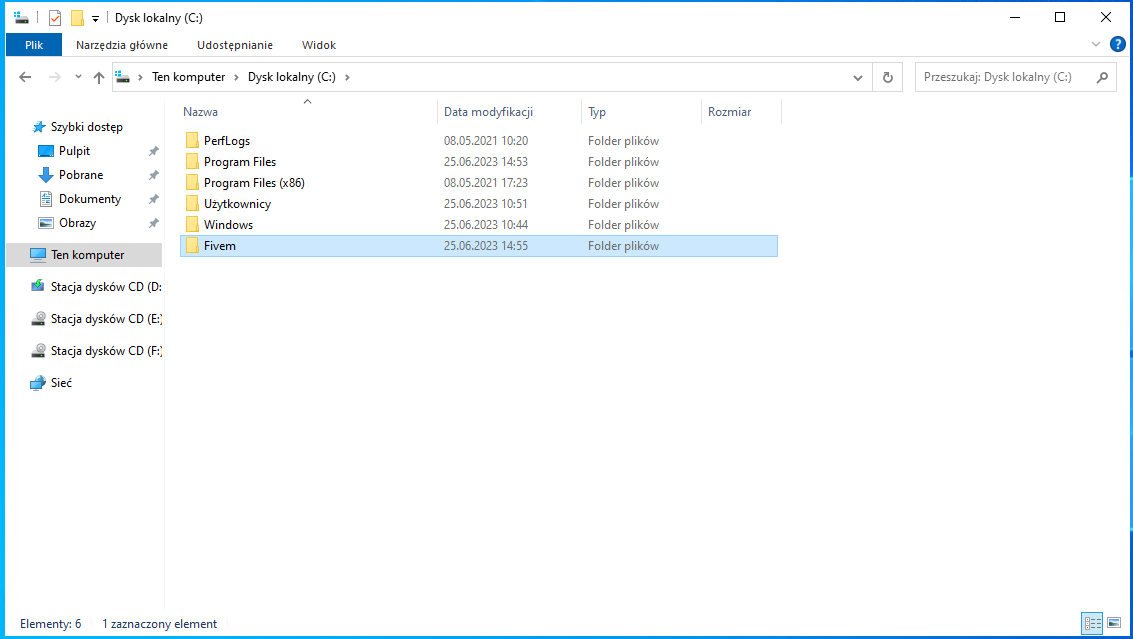
- Create a folder named FiveM on your C: drive.
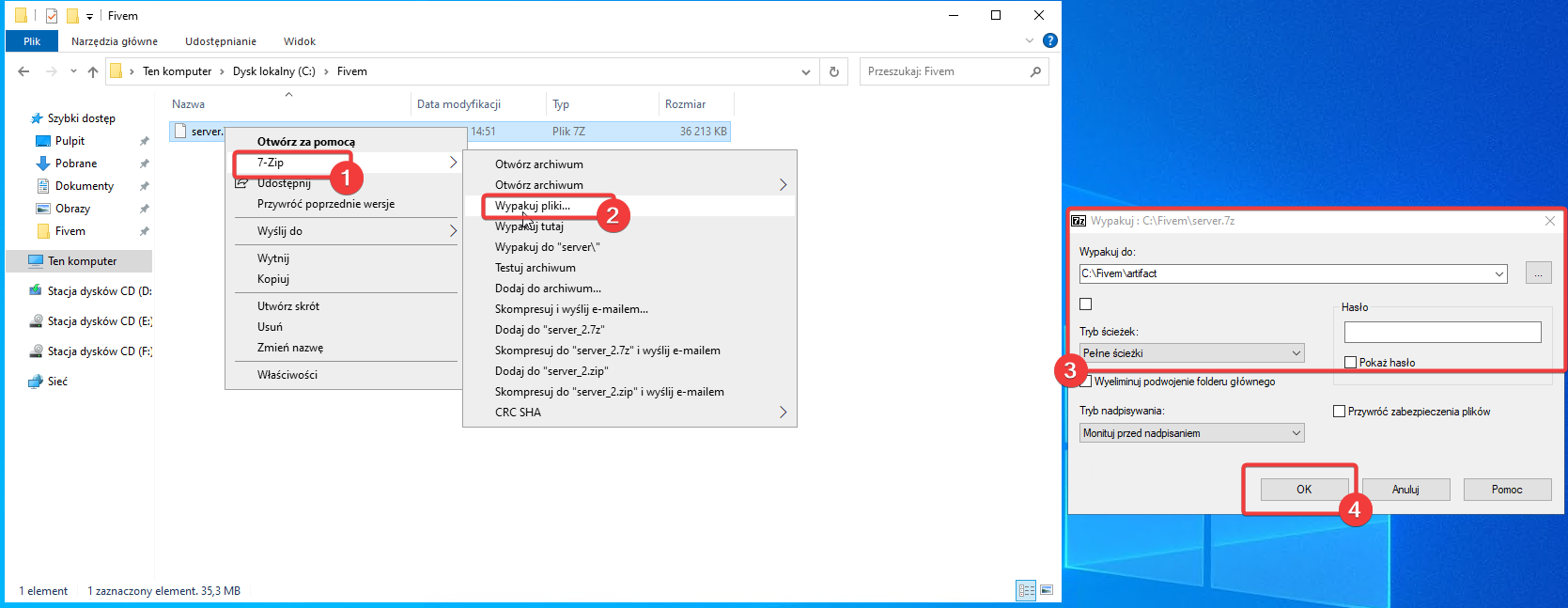
- Extract the files from the server.7z archive into the folder C:/FiveM/artifact.
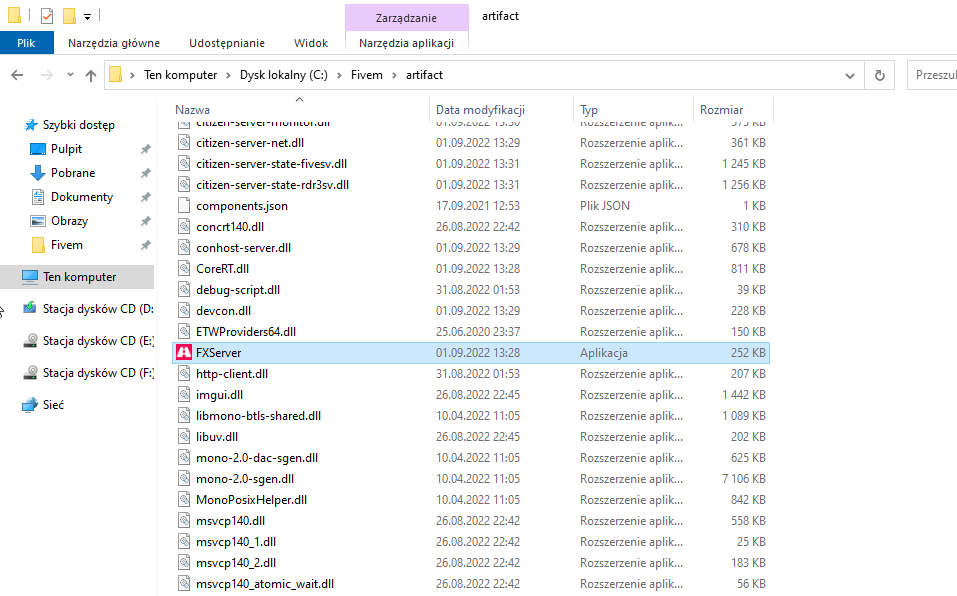
- Navigate to the newly created folder and run FXServer.exe.
- After launching the program, a console will appear with access details for txAdmin.
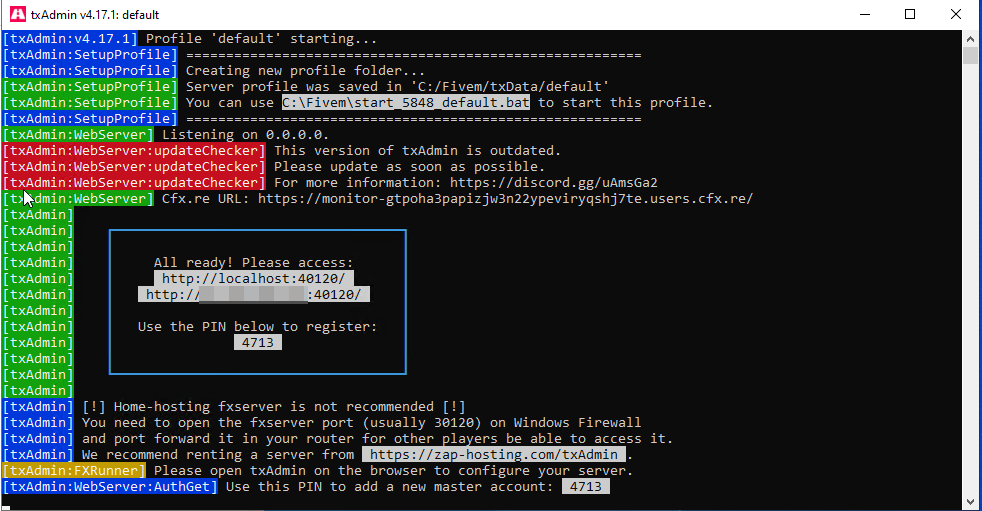
- Open your browser and go to localhost:40120, enter the PIN, and click "Link Account".
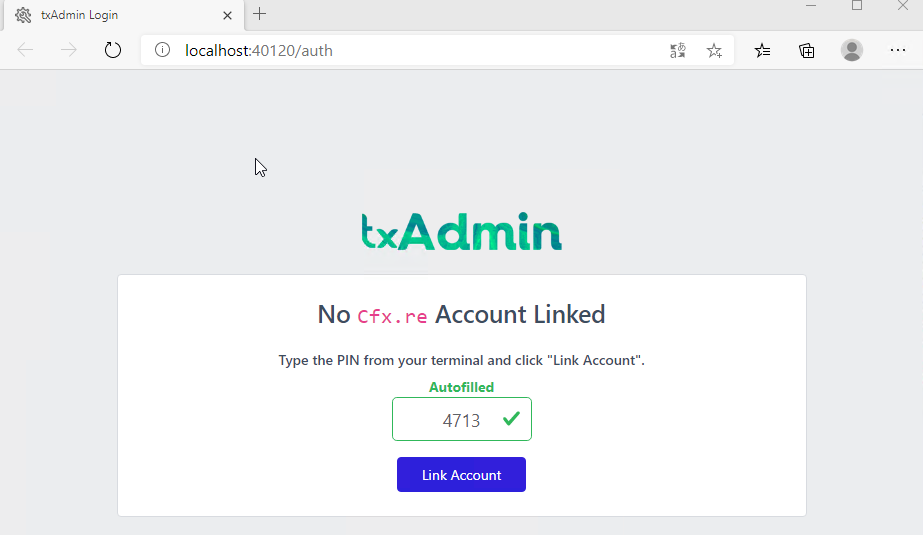
- Log in to the cfx.re system, then click „Continue” in the Authorization panel.

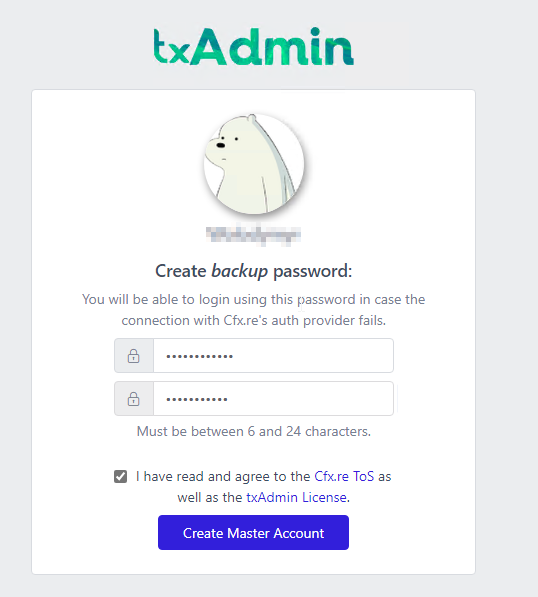
- Enter a backup password, accept the required agreements, and click „Create Master Account”.
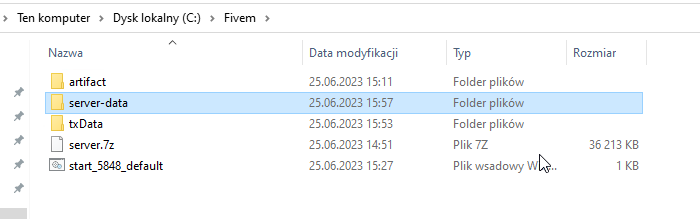
- In the folder C:\FiveM, create a new folder named server-data. This folder will hold the server.cfg file and additional server files
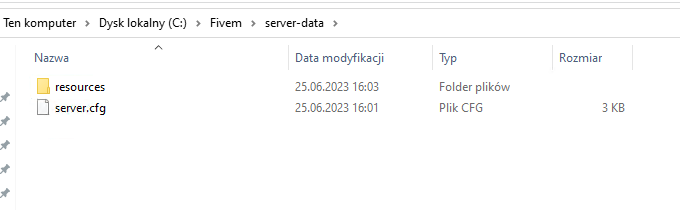
- Upload server.cfg and resources to the created folder.
The default server.cfg can be found here, and the default resources here.
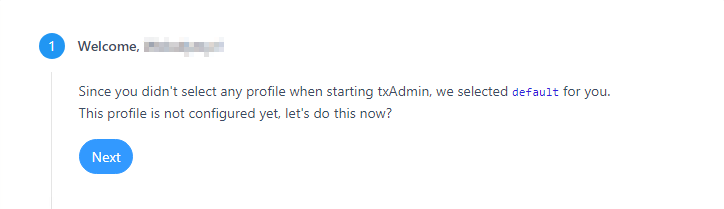
- Return to txAdmin. After creating the administrator account, the server configuration process begins. In the first window, click „Next”.
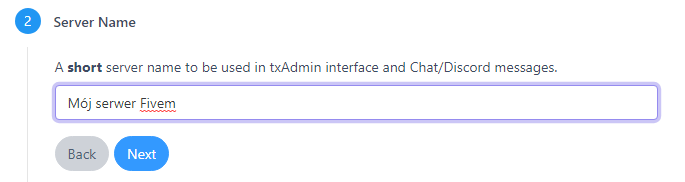
- Then enter the server name.
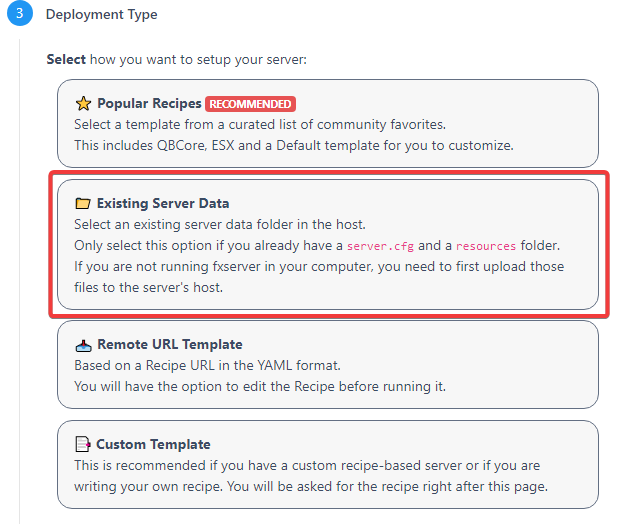
- In the third field, select „Existing Server Data”.
- Specify the location of the server files. In our case: C:\Fivem\server-data.
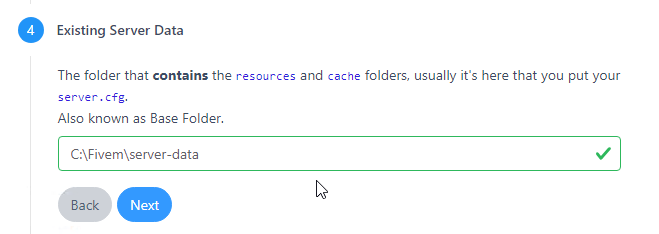
- Verify that the system detected the server.cfg file.
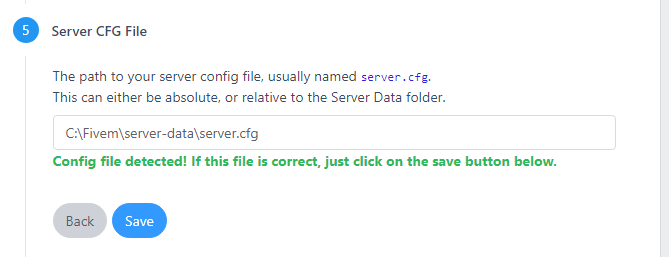
- Start the server.
Windows Defender Firewall Configuration
Configure Windows Defender Firewall on the server to allow player connections.
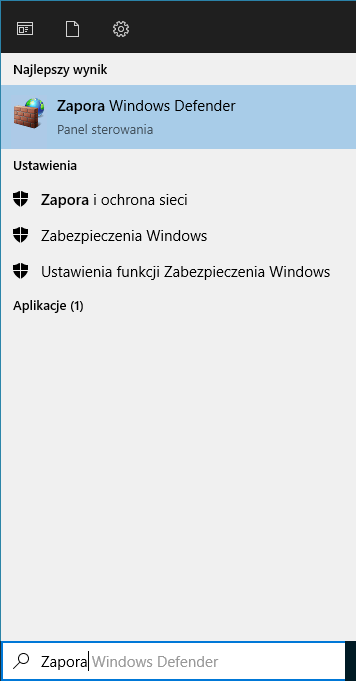
- Search for "Windows Defender Firewall"
- From the left panel, select "Turn Windows Defender Firewall on or off"
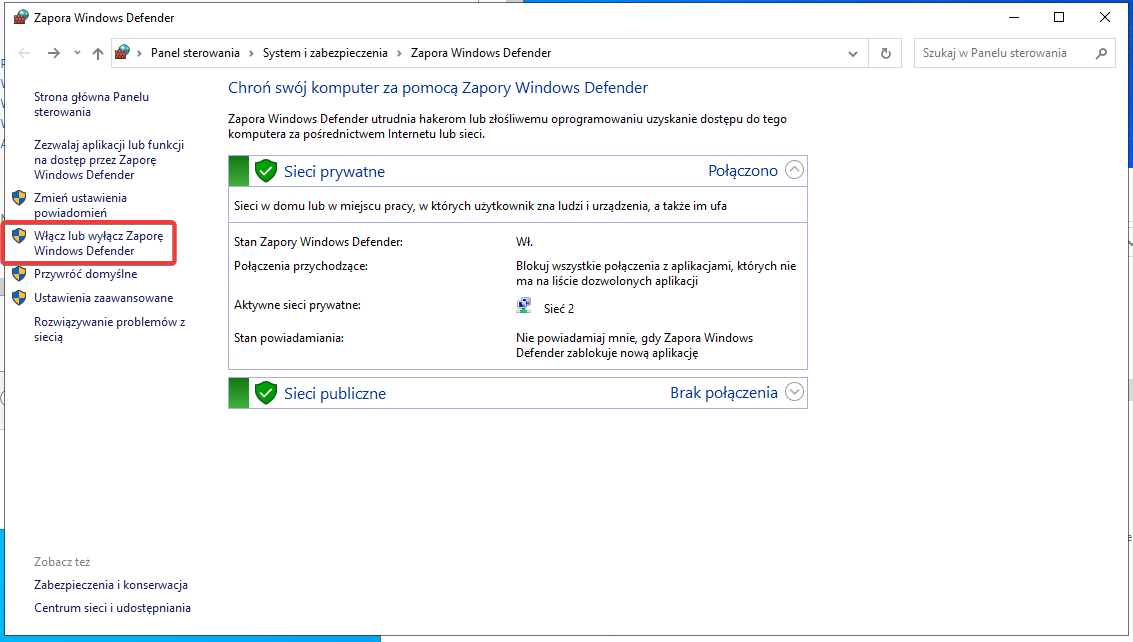
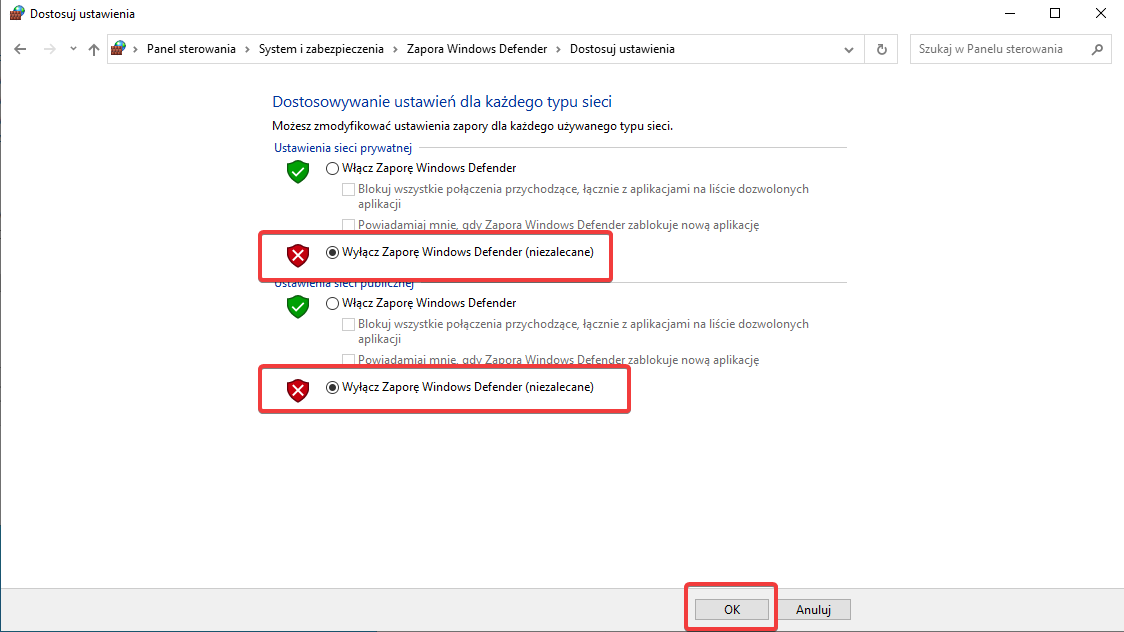
- Turn off the firewall for both private and public networks, then click Save changes.