Installing the MariaDB Service
Installing MariaDB Service on a Windows Server
Installation
- Connect to the server via Remote Desktop.
- Go to the official MariaDB website and download your chosen version of the database server.
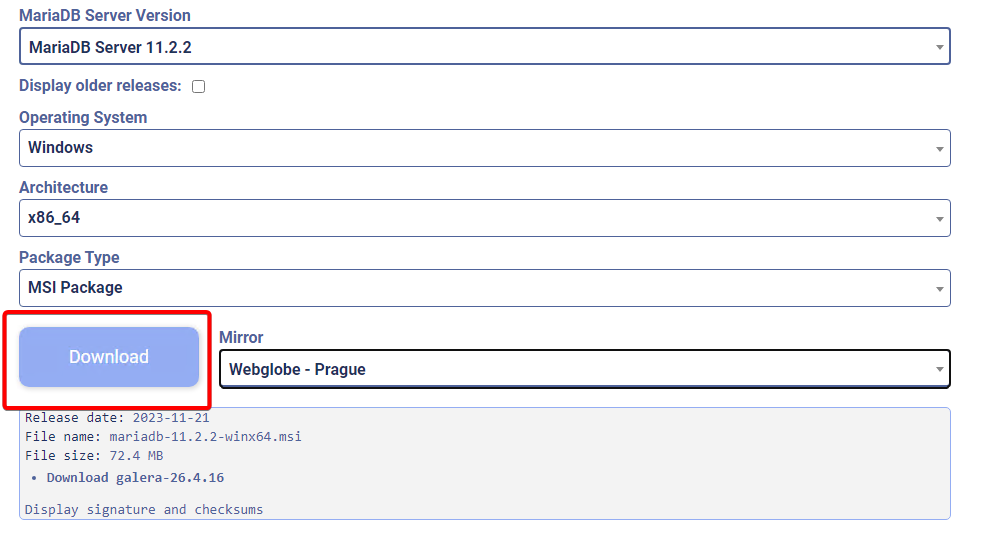
- Run the downloaded installer. Click Next, accept the license agreement, and click Next to continue.
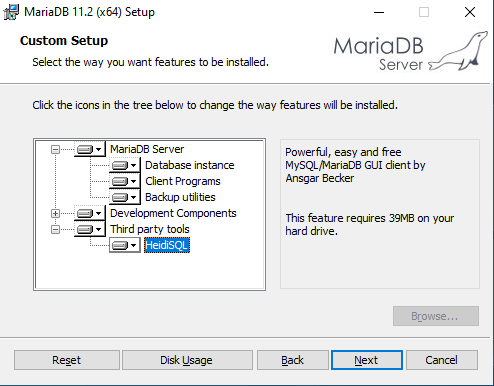
- Choose the installation path for MariaDB and select the required components, then proceed.
- Enter a password for the root user and proceed.
WARNING:
Do not allow remote access for the root user — this is unsafe and may expose your server to attacks.
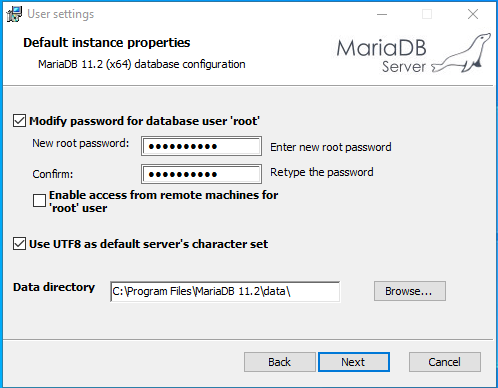
- Leave default settings (unless you need to change things like the database port) and confirm the installation.
Done, you have installed the MariaDB service!
Connecting to the server
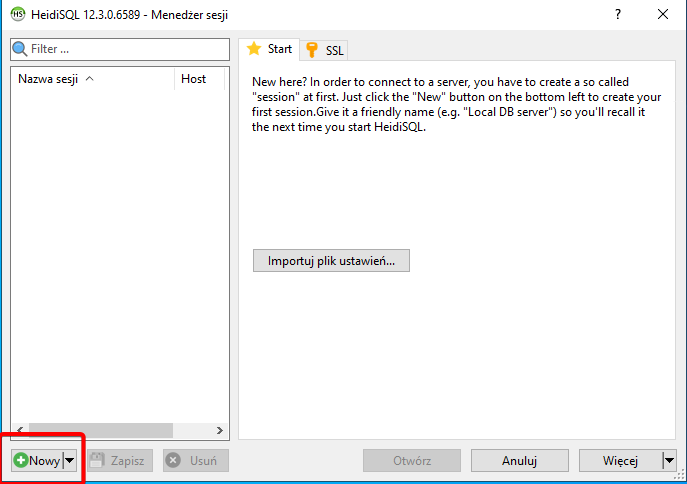
- After installation, launch HeidiSQL on the server.
- In the open window, select „New” session.
- Enter the root user password and click Open.
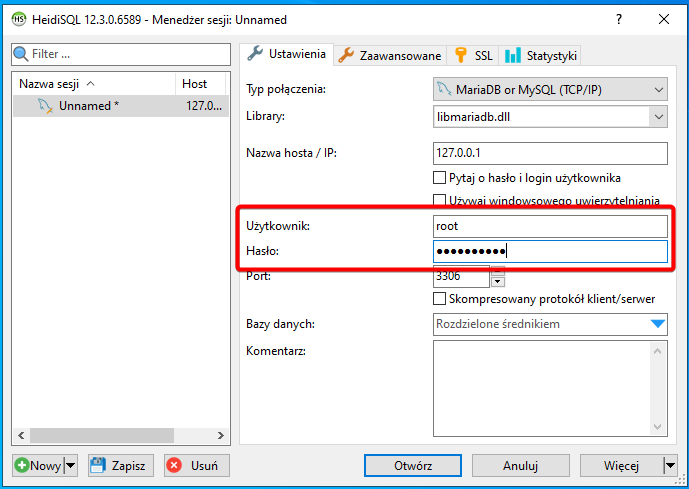
Congratulations! You are connected to the database.
Remote access to MariaDB server
WARNING:
Allowing remote access for the root user is NOT recommended! It is much safer to create a new user with appropriate permissions for remote login.
- Wybierz zakładkę Zarządzanie użytkownikami.
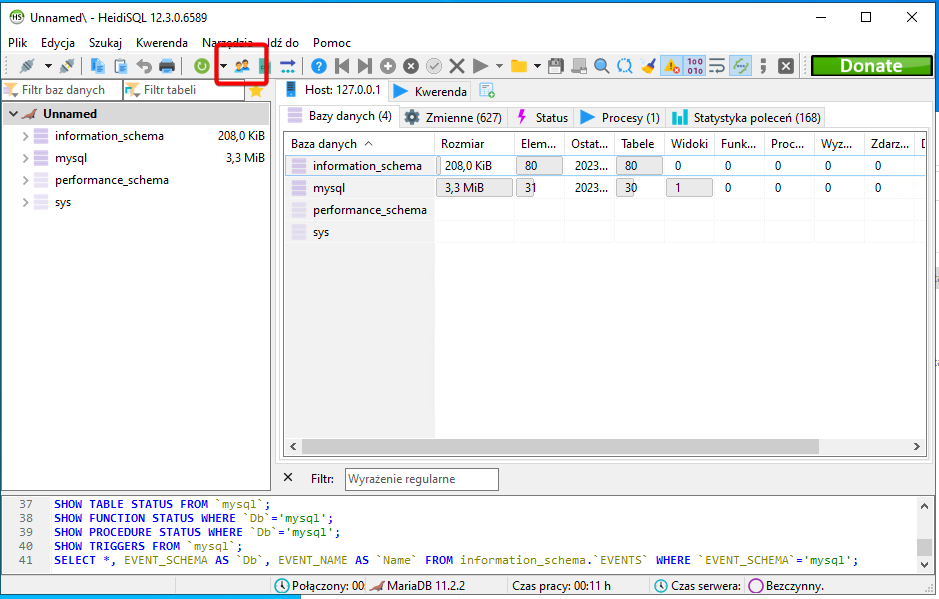
- Add a new user. In the „Allow access to” field you can grant permissions either globally (to all databases) or specify them per database. To do this, press Add Object.
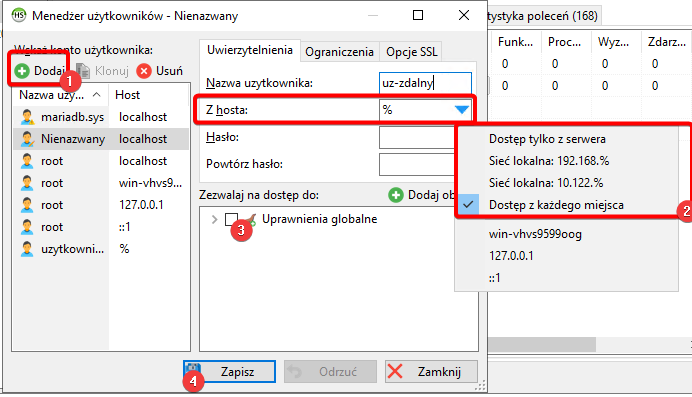
- Save the settings and check if you can connect to the MariaDB database from your local computer (e.g., using HeidiSQL).