Resetting Windows Server Administrator Password (Utilman)
Resetting the administrator password on Windows Server can seem challenging, especially on a virtual machine. This guide will show you how to safely and effectively reset the administrator password using the Utilman.exe file and a LiveCD on a SkillHost VPS. We will walk you step-by-step through loading drivers, mounting the system disk, and replacing the file with cmd.exe to regain access to the server without reinstalling the OS.
Environment Setup
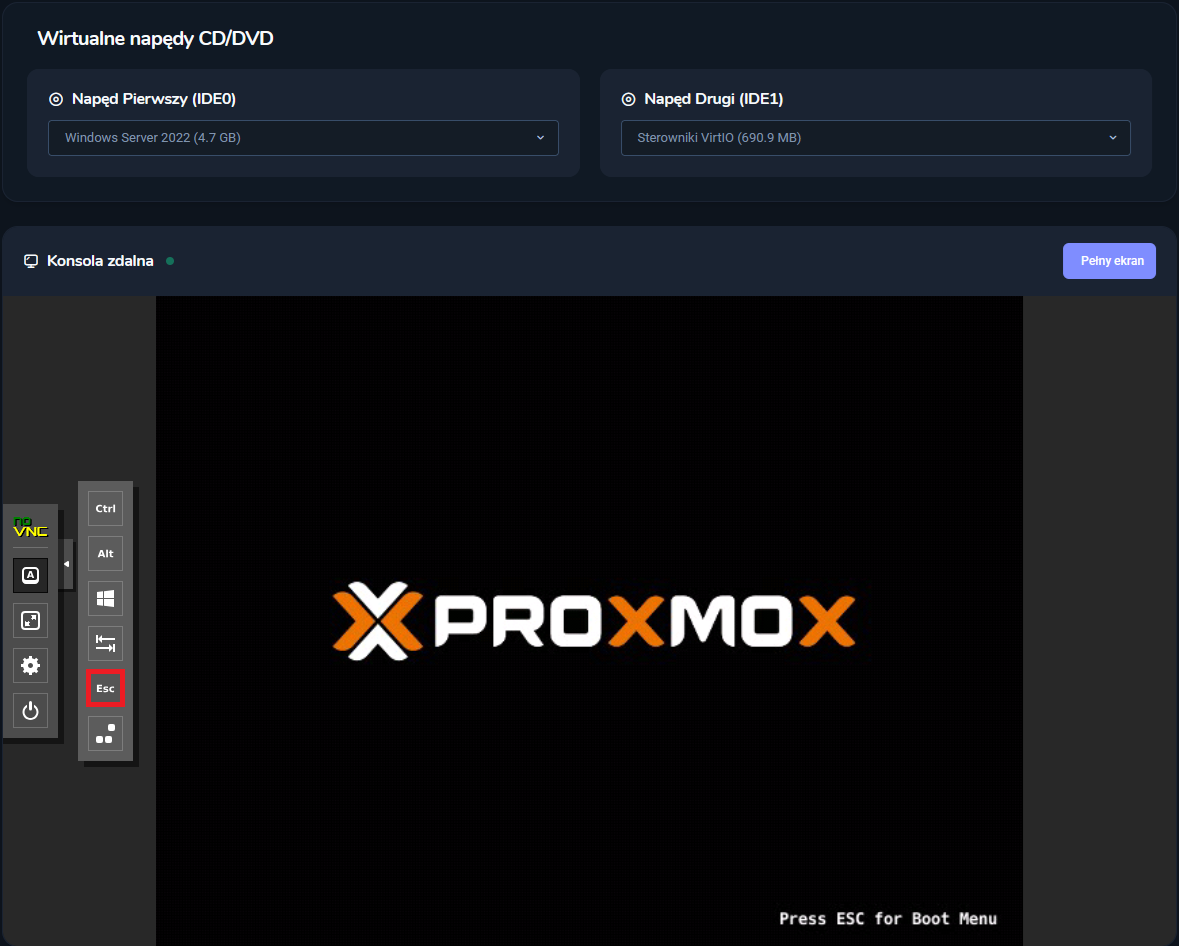
- Open the VNC console and mount the Windows Server ISO as the first drive, and the VirtIO Drivers ISO as the second drive.

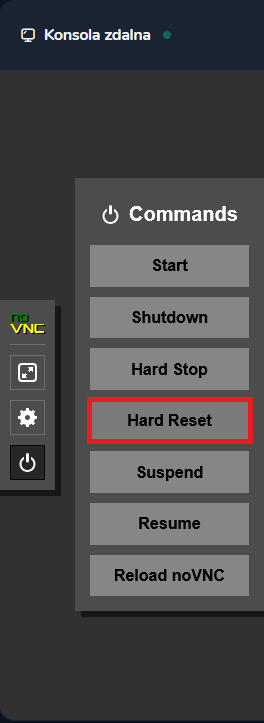
- From the menu on the left side of the console, select the Commands tab, then click Hard Reset and confirm the pop-up window.
- After performing the Hard Reset, quickly go to the side panel, select Show Extra Keys, and click the ESC key.
The ESC key must be pressed very quickly – exactly when the Proxmox logo appears on the screen. If you miss this moment, you will need to perform the Hard Reset again.
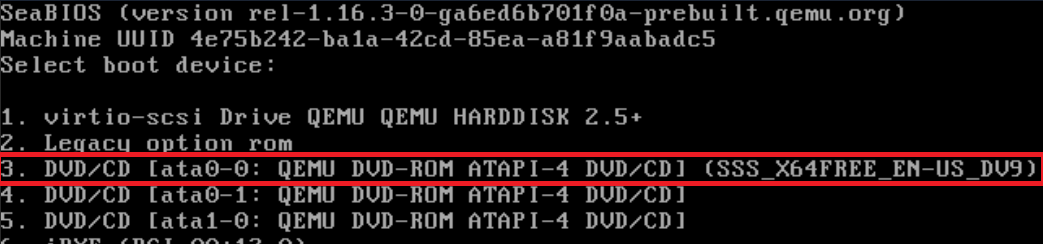
- The boot menu will appear. Select option number 3, which corresponds to drive 1 (containing the "SSS....." suffix).
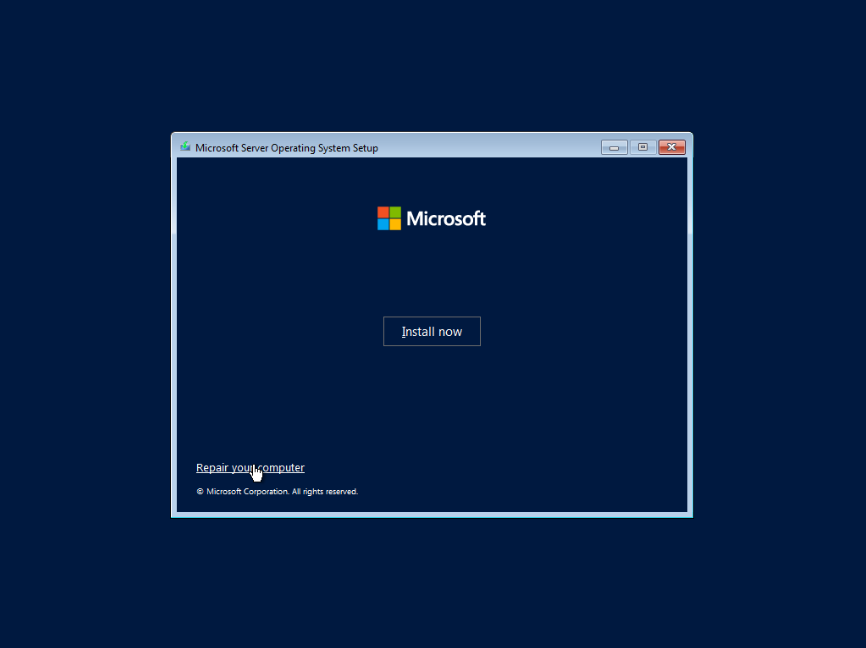
- In the installer window, click Next, and then select Repair your computer.
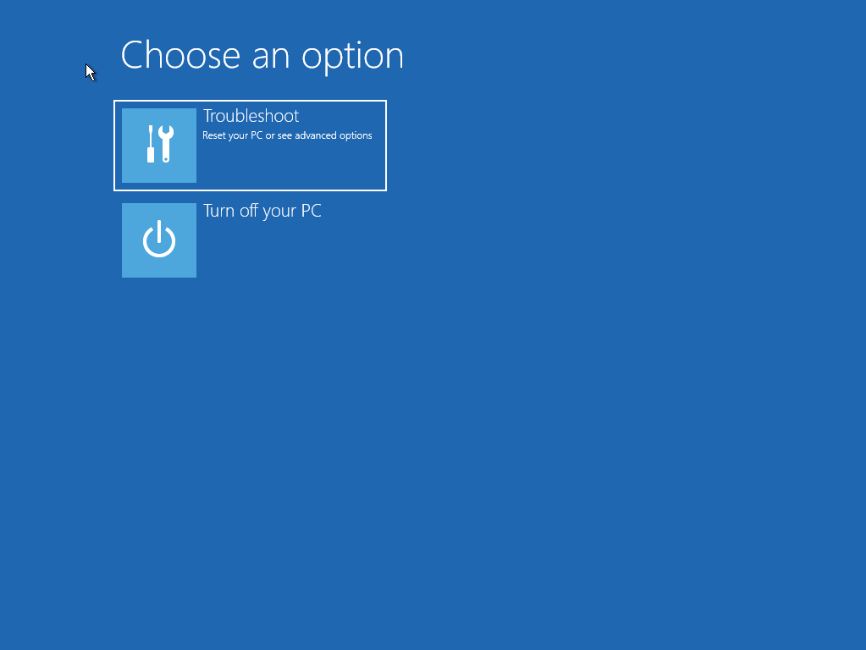
- Navigate to: Troubleshoot
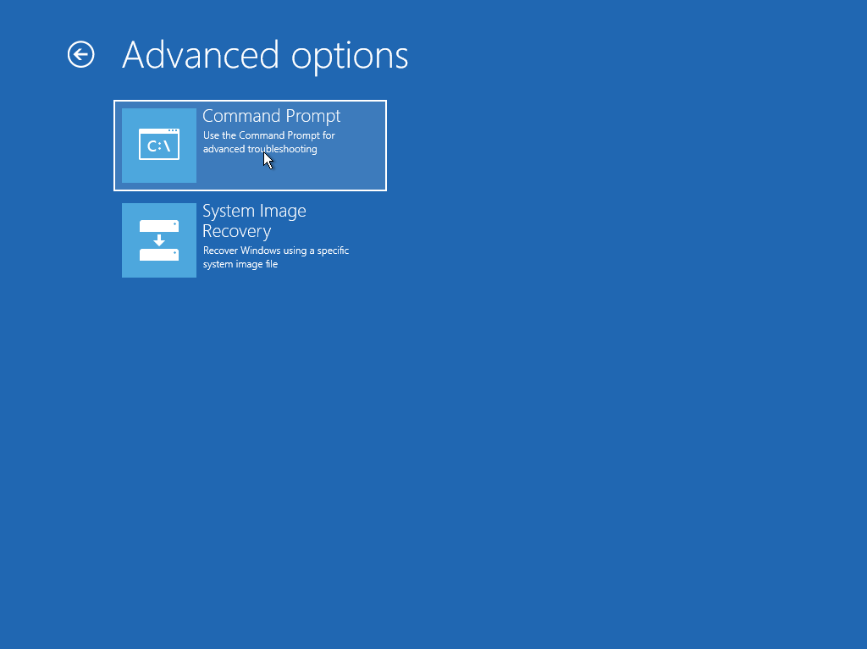
- Then select Command Prompt.
Loading Drivers
-
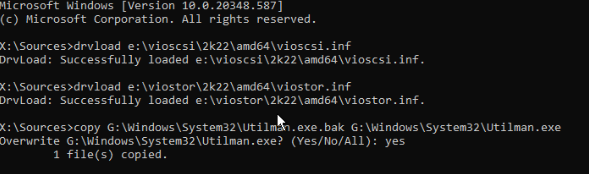
By default, the installer does not recognize virtual disks. We must load them manually. Enter the following commands, confirming each with the Enter key:
drvload e:\vioscsi\2k22\amd64\vioscsi.inf
drvload e:\viostor\2k22\amd64\viostor.inf

The 2k22 variable should match your system version: e.g., 2k19 for Windows Server 2019, or 2k25 for version 2025.
Mounting the System Partition
We need to check which drive letter the system has assigned to your disk.
-
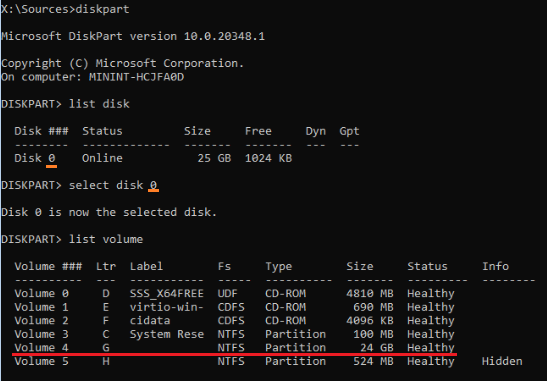
Launch the DiskPart tool:
diskpart -
List available disks:
list disk -
Select the appropriate disk (usually Disk 0):
select disk <nr> -
List available volumes:
list volume
- Identify which partition has the largest capacity and note its assigned letter. It could be C, D, G, or even X or Z (in my case, it is G).
- Exit DiskPart:
exit
Replacing the Utilman.exe File
- Now we will perform the crucial step: replacing the "Ease of Access" tool with the "Command Prompt". Replace
<letter>with your drive letter (e.g.,G):
copy <letter>:\Windows\System32\Utilman.exe <letter>:\Windows\System32\Utilman.exe.bak
copy <letter>:\Windows\System32\cmd.exe <letter>:\Windows\System32\Utilman.exe
If prompted to overwrite the file, type yes and press Enter.
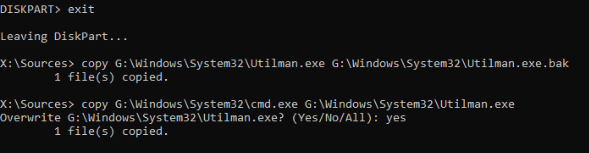
- You can now close the terminal and click Turn Off Computer. Start the server again and let the system boot normally.
Setting a New Password
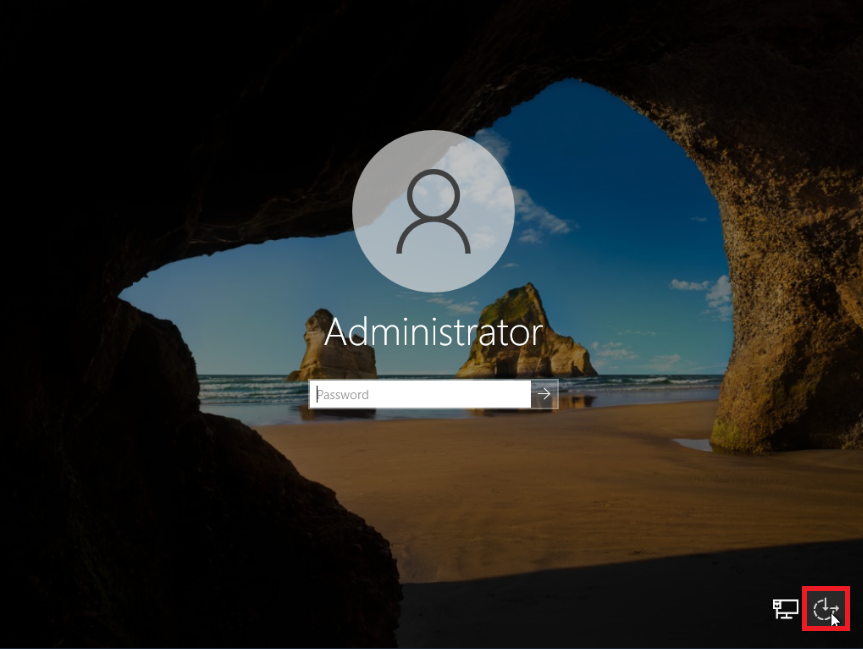
- On the login screen, click the Ease of Access icon (in the bottom right corner). Instead of the accessibility menu, the CMD console should open.
The console may sometimes launch with a delay of a few seconds – please wait a moment.
- In the console, reset the user password:
net user Administrator <new_password>
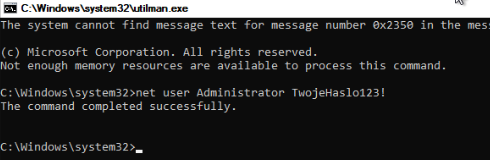
After completing these steps, you should be able to log in to the Administrator account using the new password.
Restoring Settings
For security reasons, remember to restore the original Utilman.exe file once you are finished. To do this, repeat steps 1-6 and then enter the following in the console:
copy <letter>:\Windows\System32\Utilman.exe.bak <letter>:\Windows\System32\Utilman.exe