Installing Your Own Operating System
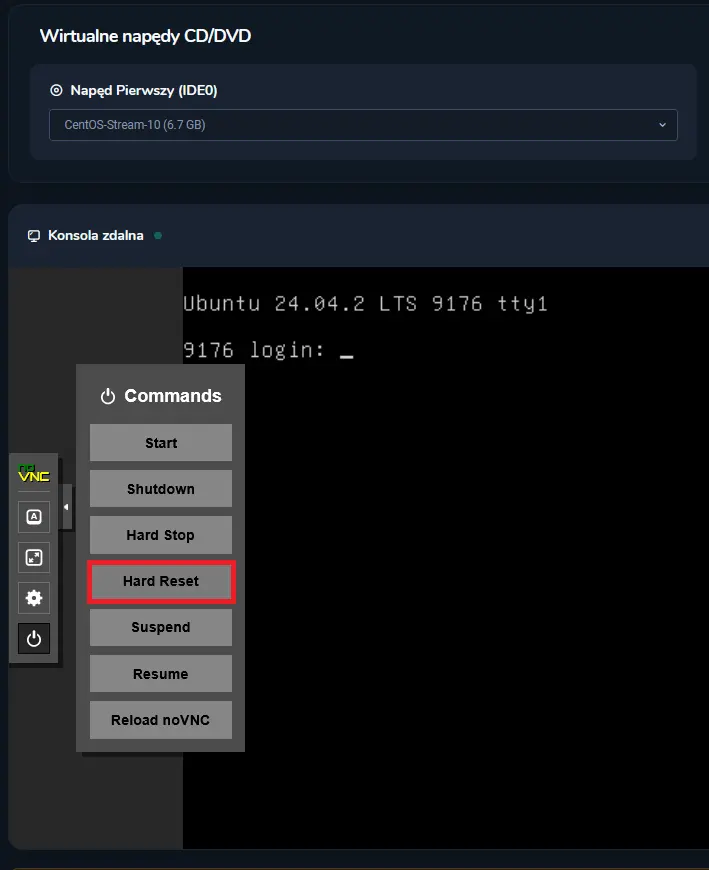
- Go to the VNC Console tab.
- In the Virtual CD/DVD Drives section, configure:
- Primary Drive: select the operating system image you want to install (for example, we select CentOS Stream 10).
- Secondary drive: leave unchanged.
If you are installing Windows, in the Secondary drive select the VirtIO Drivers image (required for proper detection of disk and network card).
INFORMATION:
If the system you want to install is not listed, contact us and send the ISO file needed for installation.

- From the console’s left menu, choose the Commands tab, then click Hard Reset and confirm the popup window.
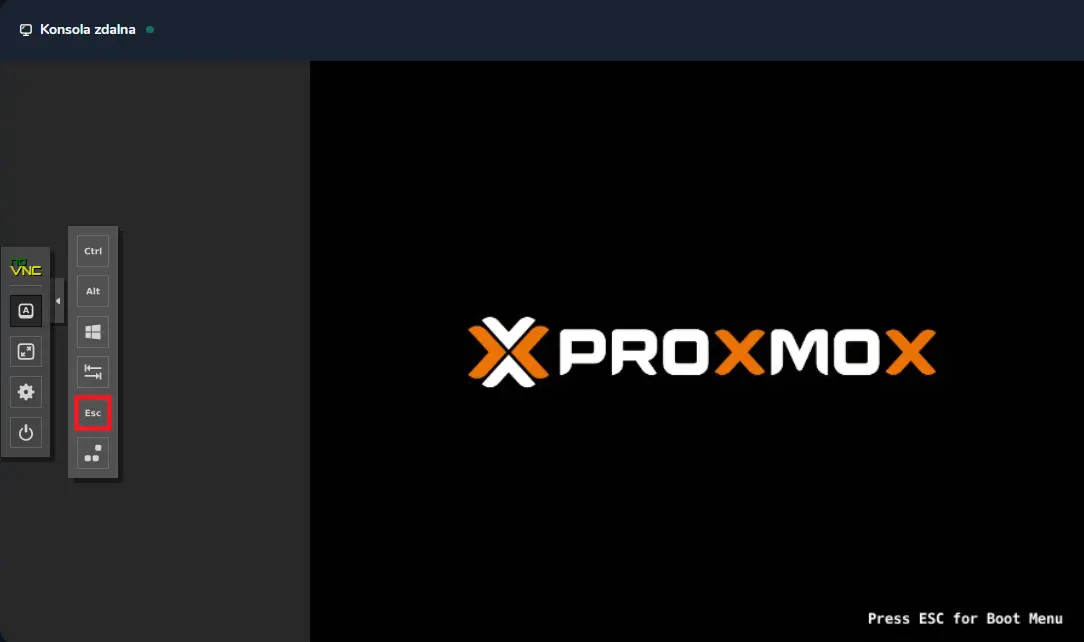
- After performing the Hard Reset, quickly go to the side panel, select Show Extra Keys and press the ESC key.
UWAGA:
The ESC key must be pressed very quickly — precisely when the Proxmox logo appears on the screen. If you miss this moment, you will need to perform the Hard Reset again.
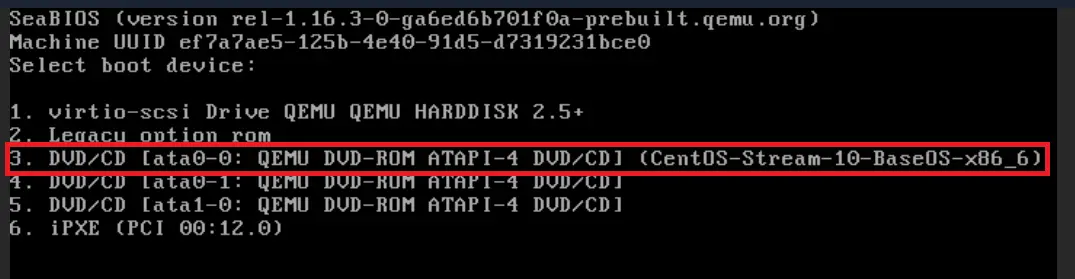
- The boot menu will appear. Choose option number 3 corresponding to drive 1 (usually appended with the name of the system you selected) to start the installer for the chosen operating system.